How Do I Remove and Re-insert the SIM Card in My Tracker?
How Do I Remove and Re-insert the SIM Card in My Tracker?
In most cases, you will not need to remove your SIM card. However, if your tracker has lost cellular signal, our Customer Service team may recommend you remove and re-insert the SIM card as part of the troubleshooting process. Follow the steps below for more information:
GL300
Step 1: Find the SIM card slot on the right side of the GL300.

Step 2: Remove the two screws on both ends, unlocking the SIM card tray. Set the screws aside in a secure place.

Step 3: Once the screws are removed, remove the SIM card tray from the GL300.

Step 4: Leave the SIM card out for at least one minute.
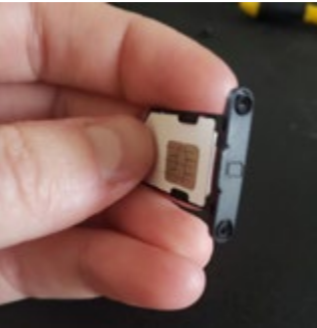
Step 5: Reinsert the SIM card tray into the GL300. The tray will need to be properly oriented when inserted. The bottom of the SIM card logo will match the notch in the GL300 case.

Step 6: Replace the two screws on both ends of the tray to secure it in place.
Step 7: Once finished, turn on the tracker using the power button located on the top of the tracker. When your tracker has connected to a cellular network, the green LED light should blink about once every 3 seconds. Click here for more information on the lights.
https://helpcenter.spytec.com/


Comments
Post a Comment